Gaming Video and Screenshot Software – Free and Paid Options
Gaming Video and Screenshot Software – Free and Paid Options
If you enjoy gaming and create your own content, there are plenty of ways to capture screenshots and record video.
Whether you just want to grab the occasional picture from a game, record a short clip or make complete gaming videos for YouTube, there are software options to suit pretty much everyone.
The good news is that you don’t necessarily need to spend any money. Your PC may already have everything you need for basic screenshots and recordings.
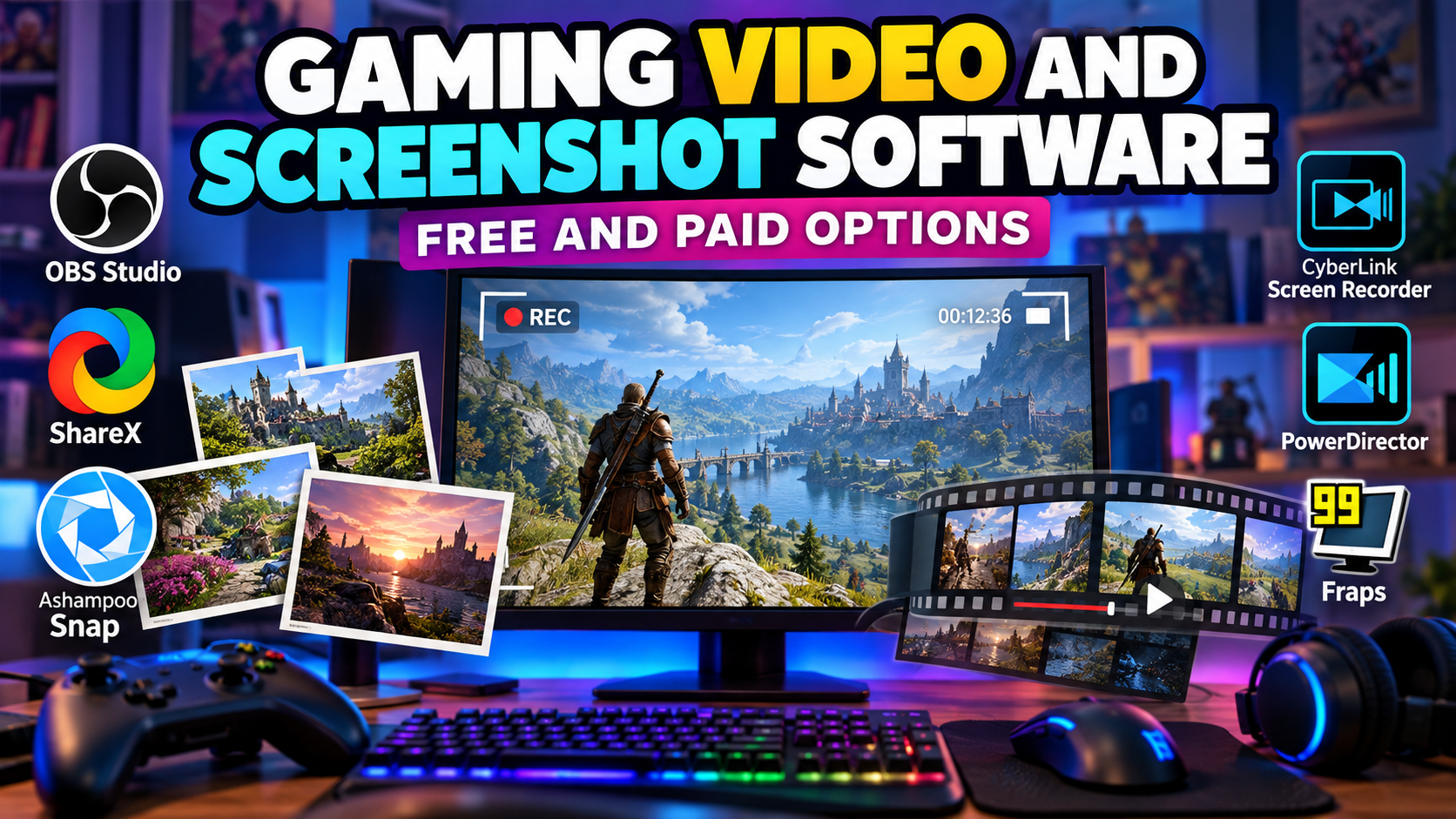
I’ve used several different programs over the years, including Fraps, Ashampoo Snap and CyberLink Screen Recorder. Here’s a look at some of the options I’ve tried and some other popular choices.
On This Page
- Do You Need Special Software?
- Built-in Screenshot and Recording Tools
- ShareX
- Ashampoo Snap
- OBS Studio
- Fraps
- CyberLink Screen Recorder
- PowerDirector – Buy or Subscribe?
- Which One Should You Choose?
- What Do I Use?
- You Don’t Have to Spend a Fortune
Do You Need Special Software?
If all you want to do is take the occasional screenshot, you may not need any extra software at all. Most PCs and gaming devices already have a screenshot function. On Windows, for example, you can use the Print Screen key or the Snipping Tool. Many games also have their own screenshot functions.
Once you’ve taken a screenshot, you can simply open it in your favourite image editor and crop it, resize it or make any other changes you need.
So, if screenshots are all you need, I’d try the tools already available on your PC or device before installing anything else.
However, if you want to record gameplay, capture longer videos or have more control over your screenshots, dedicated software can make things much easier.
Built-in Screenshot and Recording Tools
Before buying or installing anything, it’s worth checking what your computer already provides.
Windows includes Xbox Game Bar, which can be used to take screenshots and record gameplay. I’ve used this before and it works very well.
If you have an NVIDIA graphics card, NVIDIA’s software includes its own gameplay recording and screenshot features.
AMD graphics cards also have built-in recording and capture tools through AMD Software.
These can be particularly useful if you only want to record an occasional clip. There’s no point installing complicated software if your computer already does exactly what you need.
ShareX
ShareX is a free, open-source Windows program that is particularly useful for screenshots, although it can also record your screen and create GIF recordings.
You can capture the entire screen, an individual window or just a selected area. You can then edit the screenshot and add things such as text, arrows and other annotations.
For someone who mainly wants to take screenshots for a website, ShareX is a very useful free option.
Visit the official ShareX website
Ashampoo Snap
Ashampoo Snap is another option I really like, particularly if you want something that’s easy to use.
Despite the name, Snap isn’t just for screenshots. It can capture screenshots and record video, including sound, and provides editing tools for working with your captures. It also has a built-in video editor. Click here to see how it all works.
You can capture a particular area of the screen, an individual window or the entire desktop. Video recording can also include things such as your webcam and audio.
One of the things I like about Snap is that it sits somewhere between the very basic screenshot tools included with Windows and more complicated recording software.
It’s also relatively affordable compared with some of the larger video-editing packages. Ashampoo regularly offers Snap at a relatively low one-off price, although prices and special offers can change.
If you want something that can handle both screenshots and video recording without having to learn a complicated program, Snap is well worth considering. I used this for years before switching to Cyberlink.
Visit the official Ashampoo Snap website
OBS Studio
If you’re looking for a powerful free video recorder, OBS Studio is one of the best-known options.
OBS is free and open source and is available for Windows, Mac and Linux. It can record gameplay, microphones, webcams and other sources, and is also widely used for live streaming.
There are a lot of settings in OBS, which can make it seem a little complicated when you first open it. However, you don’t need to use all of those features. If all you want to do is record gameplay, you can set up a simple recording scene and get started. I personally could never get the hang of using it, but my son loves it. It comes with a learning curve which may not be for everyone.
Visit the official OBS Studio website
Fraps
For many years, I used Fraps to record gameplay.
Fraps was great because it was very simple. You could assign a hotkey to start recording and then get on with playing your game.
The biggest problem was the size of the video files. Fraps recordings could be absolutely enormous, particularly when recording at higher resolutions and frame rates. This wasn’t too much of a problem when I was recording short clips, but longer gameplay sessions could quickly use up a huge amount of hard-drive space. You could compress the footage afterwards, but that meant adding another step to the process.
Fraps was a useful program in its day, but recording technology has moved on quite a bit since I first started using it.
CyberLink Screen Recorder
These days, I generally use CyberLink Screen Recorder.
I find it much more convenient for the type of gaming videos I make. I can set up the recording, choose what I want to capture and use keyboard shortcuts without having to keep switching between programs.
Another reason I like CyberLink is that Screen Recorder works alongside PowerDirector, CyberLink’s video editing software. That means I can record my gameplay and then take the footage straight into PowerDirector when I’m ready to edit it.
CyberLink includes Screen Recorder 4 SE with PowerDirector, including with the subscription and perpetual versions.
For someone who wants to record gameplay and then edit the resulting video, having the two tools together is particularly convenient.
Visit the official CyberLink website
PowerDirector – Buy or Subscribe?
If you’re considering PowerDirector, there’s another decision to make.
CyberLink offers PowerDirector and/or their screen recorder as one-off purchases, as well as PowerDirector 365, which is a subscription.
The one-off purchase is appealing if you don’t want another subscription and are happy to keep using the version you’ve bought.
PowerDirector 365 costs money every year, but gives you access to ongoing updates and subscription-exclusive content and features. So it really comes down to how you use the software. If you only occasionally edit gaming videos, buying the software outright may be more attractive. If you’re regularly making videos for social media and want the latest features and additional content, the subscription may be worth considering.
The nice thing is that both options include Screen Recorder 4 SE, so you can record your gameplay and edit it using the same CyberLink package.
See the current PowerDirector options
Which One Should You Choose?
There isn’t really one answer. It depends on what you want to do.
| What you want | Suggested option |
|---|---|
| Occasional screenshots | Built-in PC or device tools |
| Easy screenshots and video | Ashampoo Snap |
| Free screenshot software | ShareX |
| Free, more advanced video recording | OBS Studio |
| NVIDIA graphics card | NVIDIA’s built-in tools |
| AMD graphics card | AMD’s built-in tools |
| Record and edit gaming videos | CyberLink PowerDirector |
| Simple gaming recording | CyberLink Screen Recorder |
| Old-school recording | Fraps |
You Don’t Have to Spend a Fortune
One of the nice things about gaming capture software nowadays is that you have plenty of choices. You can spend nothing at all and use the tools already included with your PC.
You can use free programs such as OBS Studio or ShareX, choose an affordable option such as Ashampoo Snap, or go for something more comprehensive such as CyberLink PowerDirector.
And if you’re wondering whether you need an expensive program just to take a screenshot, the answer is probably no!
Start with what you already have and only move to something more advanced when you actually need the extra features.